![[RELEASE] B2_Dogtags System main image](https://forum-cfx-re.akamaized.net/optimized/5X/6/2/f/4/62f41ea81a1e860c373018b45456300983f1b232_2_690x388.jpeg)
![[RELEASE] B2_Dogtags System thumbnail 2](https://forum-cfx-re.akamaized.net/original/5X/5/3/1/4/53145f00c437c2154f8154ebfb6937acae2272c2.jpeg)
![[RELEASE] B2_Dogtags System thumbnail 3](https://forum-cfx-re.akamaized.net/optimized/5X/1/2/a/d/12ad710336ab281d30d2c498eae2e7d9b5d01d77_2_483x500.png)
Price
Unknown
A script by B2DevUK
Price
Unknown
We are excited to release the Dogtag System for FiveM servers! This resource enhances role-playing experiences by adding immersive dogtags for players. Compatible with QBCore and QBox frameworks, it supports both qb-inventory and ox-inventory systems.
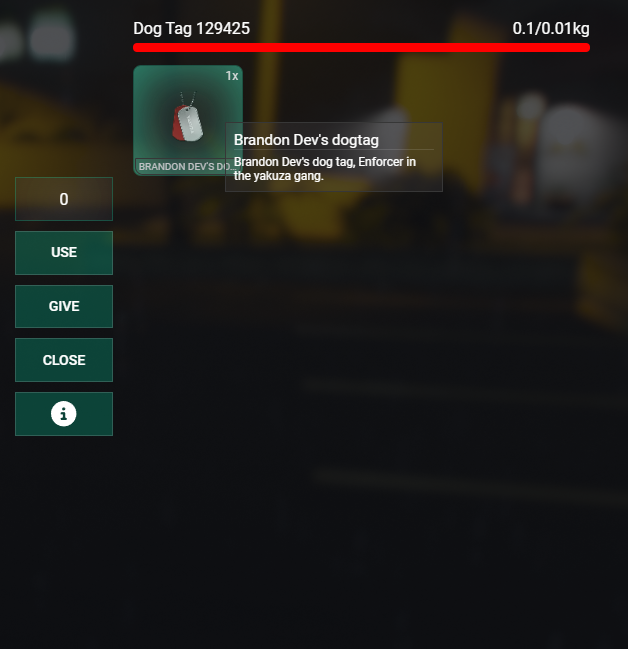
Item in Bag Inventory only available for Ox. QB-Inventory does not seem to support custom drops like this. QB-Inventory works by pressing E on the bag, and it gives you the item.
Purchase, Download and Extract the Resource
Purchase & download the dogtag system resource and extract it into your resources directory. Ensure the folder is named b2_dogtags.
Add the Resource to Your Server
Open your server.cfg and add the following line to ensure the resource starts with your server:
ensure b2_dogtags
Configure the Resource
Open the config.lua file in the b2_dogtags directory and configure it according to your server’s needs.
Configure Item Images
Place custom item images in the appropriate inventory’s images directory.
ox_inventory, place images in ox_inventory/web/images.qb-inventory, place images in qb-inventory/html/images.Add Items to Inventory
Ensure dogtag items are defined in your inventory script.
ox_inventory, add item definitions to data/items.lua.qb-inventory, add item definitions to shared/items.lua.Database Configuration
Ensure your database is configured correctly with the players table structure.
Testing
Troubleshooting
config.lua for detailed logs.For detailed installation steps, refer to the Installation Guide or the GitBook Docs
Configure the script by editing the config.lua file:
Config = {}

Config.Framework = 'qb' -- 'qb' or 'qbx'
Config.Inventory = 'qb-inventory' -- 'qb-inventory' or 'ox_inventory'
Config.NotifyScript = 'b2_notify' -- 'b2_notify' or 'ox' or 'qb_notify' or 'qbx_notify'

Config.GangTags = {
    ['gang1'] = 'tag_gang1',
    ['gang2'] = 'tag_gang2',
    -- Add more gangs and their corresponding tags - these should be the same as in the gangs.lua file
}

Config.DropOnDeath = true -- Enable or disable the drop mechanism on death
Config.PickUpAvailability = true -- Enable or disable the pick-up availability
Config.Debugging = true -- Enable or disable debugging

Config.CivPlayersDropTags = false  -- Enable or disable the drop of tags when a civilian player dies - false means only gang members will drop tags
Config.PoliceDropTags = true -- Enable or disable the drop of tags when a police officer dies - done via Job
Config.PoliceJob = 'police' -- Define the police job name
Once installed and configured, the Dogtag System works as follows:
To add new gangs to the Dogtag System, update the Config.GangTags table in the config.lua file:
Config.GangTags = {
    ['gang1'] = 'tag_gang1',
    ['gang2'] = 'tag_gang2',
    ['newgang'] = 'tag_newgang', -- Add your new gang here
    -- Add more gangs and their corresponding tags
}
To customize the notification system, set the Config.NotifyScript variable in the config.lua file:
Config.NotifyScript = 'b2_notify' -- 'b2_notify' or 'ox' or 'qb_notify' or 'qbx_notify'
Ensure the chosen notification script is installed and configured on your server.
For installation help and support, refer to the included documentation or reach out to us directly.
The Dogtag System is available on Tebex in both asset protected and open source formats. Choose the option that best suits your needs!
 Tebex Store: B2 Scripts
Upgrade your FiveM server with our immersive Dogtag System and make every player’s death a memorable one!
| Code is accessible | Open Source Available |
| Subscription-based | No |
| Lines (approximately) | 250-300 |
| Requirements | QBCore or QBox & QB-Inventory or Ox_inventory |
| Support | Yes |
See what others are saying about this script.
Share your experience and help others.